Still Have Questions?
- Unlock your iPhone and tap “Trust This Computer” if prompted.
- On Windows, ensure iTunes is installed. Download it from the Apple website if needed.
- Try a different USB cable or USB port.
- Go to Settings > About Phone
- Tap Build Number 7 times to unlock Developer Options
- Go to Developer Options and turn on USB Debugging
- Go to Developer Options and turn on USB Debuggin On Windows, install the correct USB Drivers for your Android phone (check your phone manufacturer’s website)
- Use a high-quality USB cable and switch to a different USB port if needed
- Make sure both devices stay connected and unlocked during the transfer.
- Disable battery-saving mode or power-saving settings on both devices.
- Restart AIWATransfer and try again.
- If using a laptop, ensure it’s plugged in to avoid power interruptions.
- Ensure you have the latest version of the software
- Close any other apps that might be using the USB connection (like iTunes or Android File Transfer).
- Run AIWATransfer as an administrator (Windows) or grant Full Disk Access (Mac)
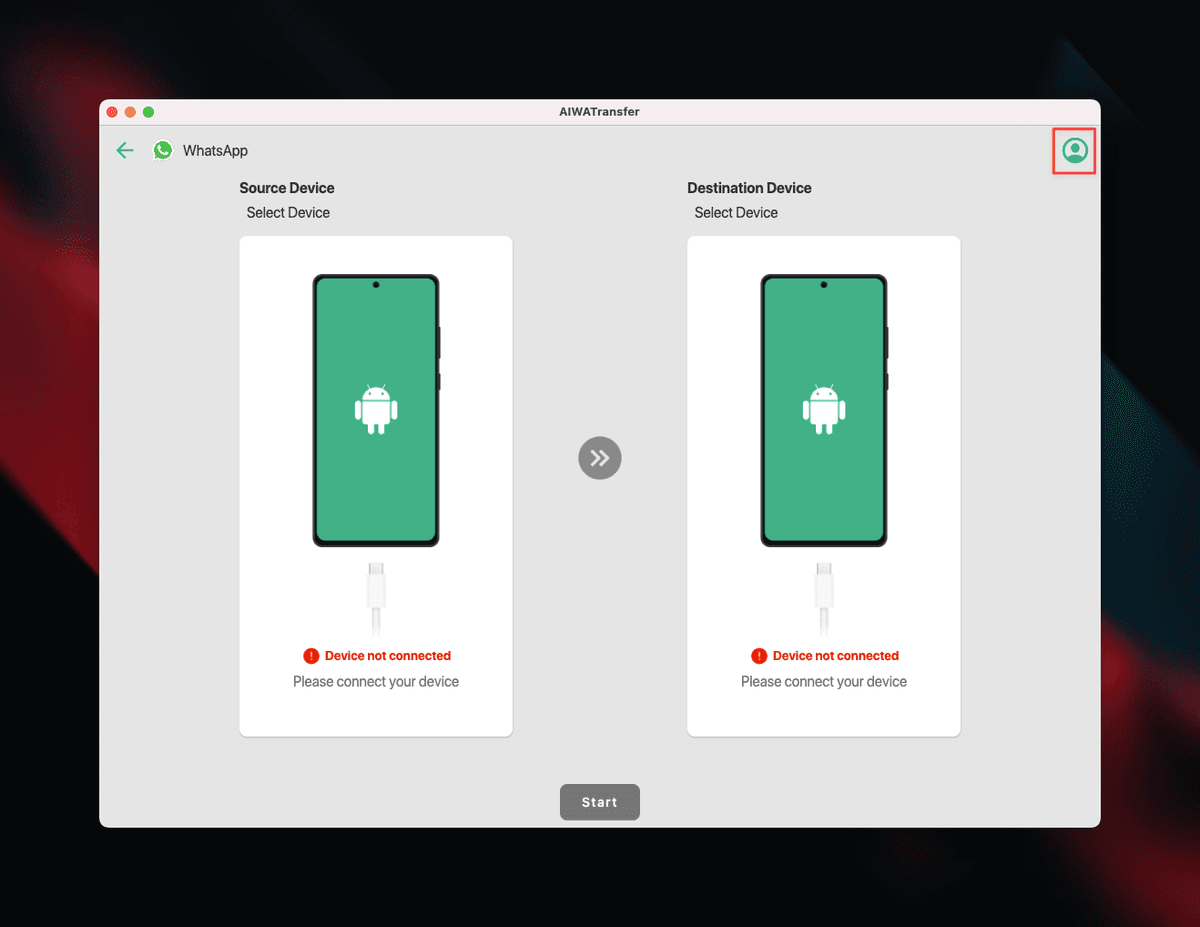
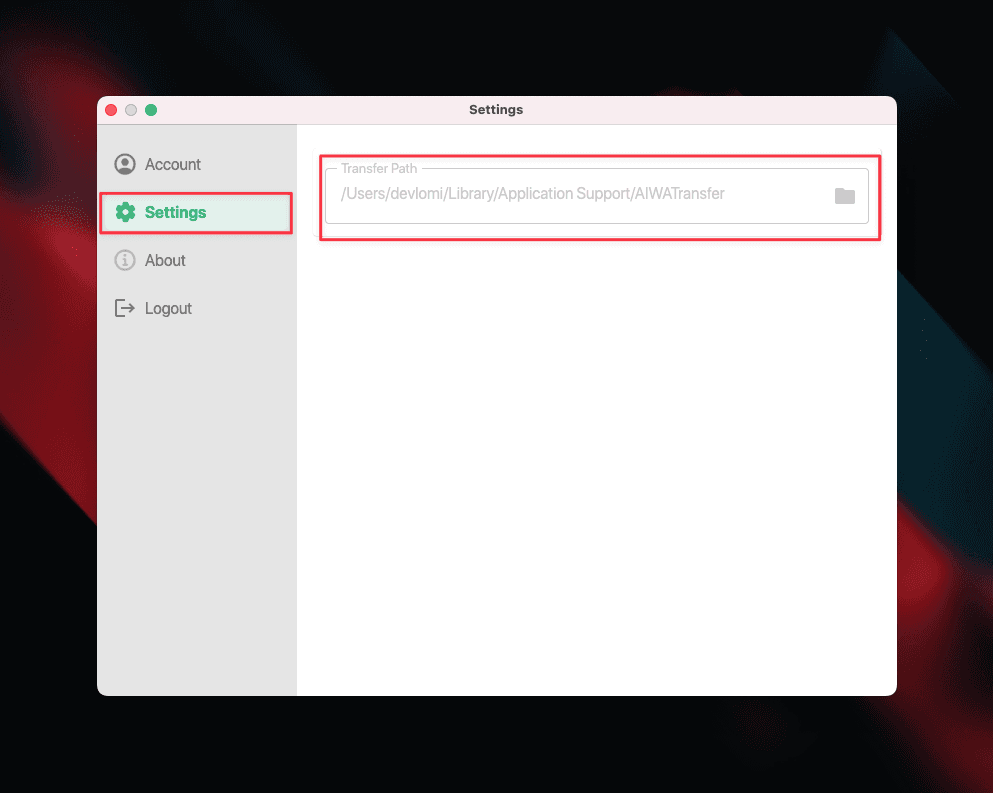
To change where AIWATransfer stores your backup files:
- Open AIWATransfer and go to Settings
- Look for “Transfer Path” option
- Click “Folder Button” to select a new folder
- Choose a location with enough free space (recommended: at least 10GB)
- Click “Apply” or “Save” to confirm the changes
Visual Guide:
1. Locate the Transfer Path setting:
2. Click the folder button to change the path:
To safely delete old backup files and reclaim disk space:
- Open AIWATransfer and go to Settings
- Find the current “Backup Folder Path” location
- Copy this path and close AIWATransfer completely
- Navigate to the backup folder using File Explorer (Windows) or Finder (Mac)
- Select and delete old backup folders you no longer need
Where to find the backup path:
Log files help diagnose transfer issues. Here’s how to locate them:
- First, find your backup folder path in AIWATransfer Settings
- Navigate to that backup folder location
- Look for a file named “app.log”
- This file contains detailed information about transfer operations and any errors
Windows:
Mac:
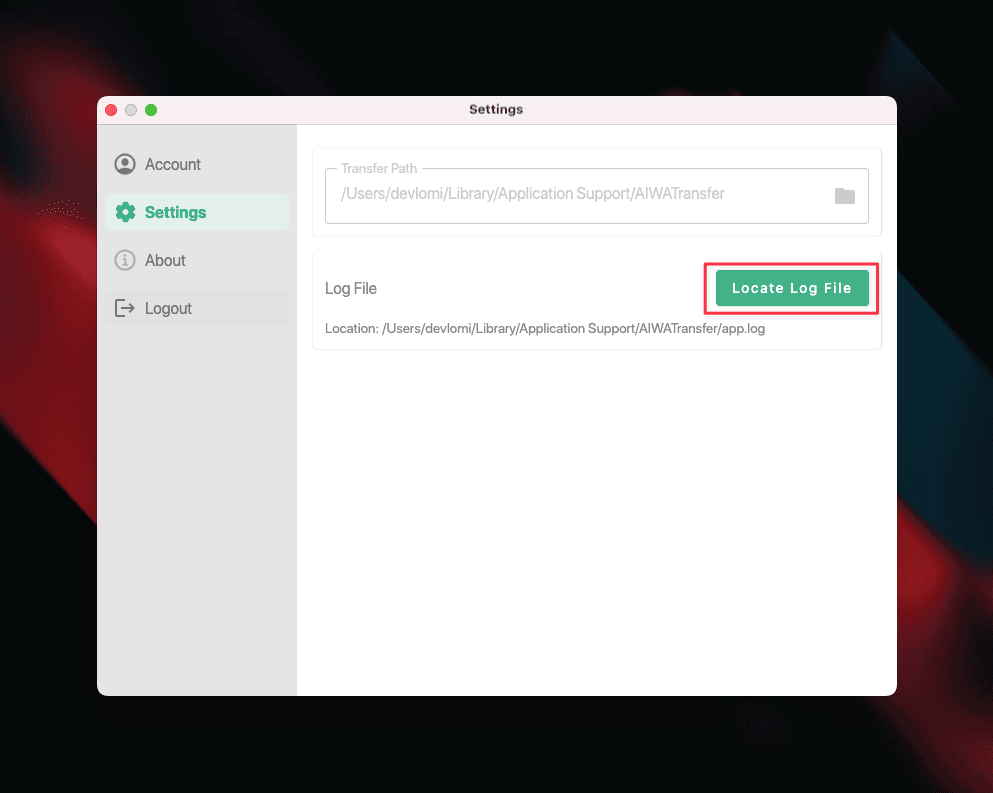
- Open AIWATransfer
- Go to Profile -> Settings
- Click on “Locate Log File”
- This will automatically open the log file location in File Explorer (Windows) or Finder (Mac)
If your iPhone backup fails during the transfer process, try these solutions:
- Disable iTunes Encryption: Open iTunes/Finder, select your iPhone, and uncheck “Encrypt iPhone backup”
- Trust the Computer: Unlock your iPhone and tap “Trust This Computer” when prompted
- Update iTunes: Ensure you have the latest version of iTunes (Windows) or macOS (Mac)
- Free up Space: Make sure your computer has at least 10GB of free storage space
- Restart Devices: Restart both your iPhone and computer, then try again
- Use Original Cable: Use the original Apple Lightning cable for the most reliable connection
If you’re seeing a “no internet connection” error, try these troubleshooting steps:
- Check Your Connection: Verify that your computer is connected to the internet by opening a web browser
- Restart Your Router: Unplug your router for 30 seconds, then plug it back in
- Disable VPN/Proxy: Temporarily disable any VPN or proxy settings that might interfere with the connection
- Firewall Settings: Make sure your firewall isn’t blocking AIWATransfer. Add it to your firewall’s allowed apps list
- Antivirus Software: Temporarily disable antivirus software to see if it’s blocking the connection
- Download the Latest Version: Go to the Download page and download the latest version of AIWATransfer, even if it shows the same version number as your current installation
- Reinstall the Software: Uninstall your current version and install the freshly downloaded one
- Run as Administrator: Right-click on AIWATransfer and select “Run as Administrator” (Windows) or grant necessary permissions (Mac)
If you got stuck at enabling end-to-end encryption, you need to enable end-to-end encrypted backups in WhatsApp. Follow these steps carefully:
- Open WhatsApp on your phone
- Go to Settings -> Chat Backup
- Tap on End-to-End Encrypted Backup
- Select Turn On
- Choose “Use 64 digit encryption key” instead of password
- Tap Generate your 64 digit key
- While on this screen showing your 64-digit key, click “OK” in AIWATransfer
- Then click “SCAN” in AIWATransfer
- Click “Continue” in WhatsApp
- Click on “I saved my 64 digit key” in WhatsApp
- Click on “Create”
Once the backup process is complete and the dialog disappears, click “OK” in AIWATransfer to continue with the transfer.
📹 Video Tutorial:
If your transfer is completely stuck or won’t start at all, deleting the backup folder can sometimes resolve the issue. However, this should only be done as a troubleshooting step.
Only delete the backup folder if your transfer is stuck or won’t start. Do NOT delete it during an active transfer or after a successful transfer until you’ve verified your data.
- Transfer won’t start after multiple attempts
- You’re getting persistent errors that won’t resolve
- Previous transfer attempts failed and you want to start fresh
- Close AIWATransfer completely
- Open AIWATransfer Settings to find the backup folder path
- Navigate to that location using File Explorer (Windows) or Finder (Mac)
- Delete the entire backup folder
- Restart AIWATransfer and try the transfer again
Visual Guide to Find Backup Path: